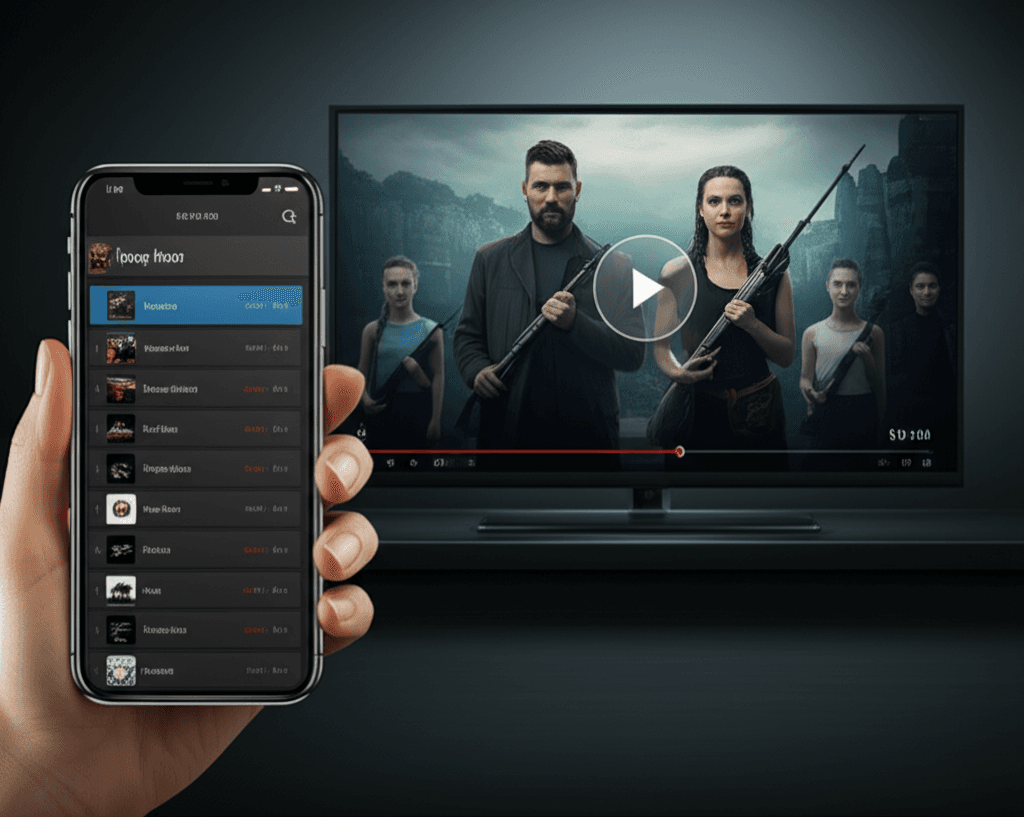
What is an IPTV Player Application?
An IPTV player is a software application designed to receive, decode, and display streaming television content delivered over Internet Protocol (IP) networks. Unlike traditional media players that simply play local video files, IPTV players are specifically engineered to handle real-time streaming protocols, manage electronic program guides (EPG), and provide a television-like viewing experience on various devices.
These applications serve as the bridge between your IPTV service provider and your viewing device. They connect to streaming servers, authenticate your subscription, retrieve channel listings, download program schedules, and render video content in real-time. The quality of your IPTV player directly impacts your viewing experience—affecting everything from channel switching speed to video stability and feature availability.
MegaOTT represents one category of IPTV players known as "Xtream Codes compatible" players. These applications are designed to work with the Xtream Codes API, a standardized interface that many IPTV providers use to deliver content. This compatibility ensures seamless integration with services that provide Xtream-style credentials (username, password, and server URL).
How IPTV Players Process Streaming Content
Understanding how IPTV players work helps troubleshoot issues and optimize performance. When you open an IPTV player and enter your credentials, several technical processes occur behind the scenes:
Authentication: The player contacts your IPTV provider's server and validates your credentials. This handshake confirms your subscription status, identifies available channels, and may check device limits if your plan restricts concurrent connections. Failed authentication typically results in "invalid credentials" or "subscription expired" messages.
Channel List Retrieval: Upon successful authentication, the player downloads your channel lineup. This includes channel names, logos, category assignments, and stream URLs. Better players cache this information to speed up subsequent launches, reducing load times from minutes to seconds.
EPG Synchronization: Electronic Program Guide data is typically retrieved from a separate XML source. Quality IPTV players download and parse this data efficiently, matching program information with corresponding channels. EPG updates usually occur daily, though some players allow manual refresh for immediate updates.
Stream Decoding: When you select a channel, the player requests the stream URL, establishes a connection, and begins receiving video packets. These packets, typically encoded in H.264 or H.265 (HEVC) format, are decoded by the player's video engine and rendered on screen. Hardware decoding (using your device's dedicated video chip) provides better performance and battery life than software decoding.
Key Features of Modern IPTV Players
Today's IPTV players offer features that rival or exceed traditional cable boxes. Understanding these capabilities helps you choose the right player and maximize your streaming experience:
Multi-Format Support: Quality players support multiple input formats including Xtream Codes API, M3U/M3U8 playlists, and sometimes direct stream URLs. This flexibility allows users to connect various IPTV services through a single application without needing to switch between different apps.
Favorites and Organization: Managing thousands of channels requires robust organization tools. Look for players offering favorites lists, custom categories, channel hiding/sorting, and search functionality. Some advanced players support multiple profiles for different family members, each with personalized favorites and viewing history.
Catch-Up and Recording: Certain IPTV services offer catch-up TV (time-shifted viewing) or cloud DVR capabilities. Compatible players provide interfaces to access previously aired content or schedule recordings—though these features depend on your service provider supporting them at the server level.
Parental Controls: Family-oriented users benefit from PIN protection and channel blocking features. Better players allow setting restrictions based on channel categories or individual channels, preventing unauthorized access to adult content while maintaining easy access for authorized users.
External Player Integration: Some IPTV players allow integration with external video players like VLC or MX Player. This option proves useful when troubleshooting playback issues or when external players offer superior codec support for your specific device configuration.
Installing IPTV Players on Amazon Firestick
Amazon Fire TV Stick is among the most popular devices for IPTV viewing due to its affordable price, portability, and Android-based operating system. However, since most IPTV players aren't available in the Amazon App Store, installation requires "sideloading"—installing apps from sources outside the official store.
Step 1: Enable Developer Options
Navigate to Settings → My Fire TV → Developer Options. If you don't see Developer Options, go to Settings → My Fire TV → About → click on your Fire TV device name seven times to enable developer mode. Then enable "Apps from Unknown Sources" and "ADB Debugging" if you plan to use ADB installation methods.
Step 2: Install Downloader App
Search for "Downloader" in the Amazon App Store and install it. This free app allows you to download APK files directly from URLs. It's the most straightforward method for sideloading applications on Fire TV devices and is trusted by millions of users worldwide.
Step 3: Download the IPTV Player APK
Open Downloader and enter the download URL for your chosen IPTV player. Your IPTV provider typically supplies this URL in their setup documentation or welcome email. The APK file will download and prompt you to install. Accept the installation when prompted and wait for completion.
Step 4: Configure and Activate
Launch the newly installed player from your apps. Enter the credentials provided by your IPTV service—typically a username, password, and server URL. The player will authenticate with your provider and load your channel lineup, which may take a few moments on first launch.
Android Phone and Tablet Installation
Installing IPTV players on Android devices is generally simpler than on Firestick. Many quality players are available directly from the Google Play Store, eliminating the need for sideloading. For apps not on the Play Store, Android's built-in package installer makes APK installation straightforward.
When installing from sources outside the Play Store, Android will prompt you to allow installation from unknown sources. This setting can be enabled globally or on a per-app basis (recommended for security). Navigate to Settings → Security → Unknown Sources, or in newer Android versions, grant permission to specific apps like your browser or file manager.
After installation, consider adjusting your device's display settings for optimal video playback. Enable "Stay Awake" in Developer Options to prevent screen timeout during viewing. If available, adjust video scaling and aspect ratio settings within the IPTV player to match your content and screen dimensions.
Smart TV Installation Options
Smart TV installation varies significantly by platform. Android TV-based televisions (Sony, TCL, Hisense, and others) function similarly to Android phones, with Google Play Store access and APK sideloading capability. Samsung (Tizen OS) and LG (webOS) TVs have more limited options but still support IPTV viewing.
Android TV: Access the Google Play Store directly from your TV and search for IPTV players. Popular options like TiviMate are available. For apps not in the store, you can sideload using a USB drive or apps like "Send Files to TV" that transfer APKs wirelessly from your phone.
Samsung Tizen: Options are limited to apps available in Samsung's app store. Smart IPTV (available for a small one-time fee) is the most popular choice. It supports M3U playlist loading via a web interface where you upload your playlist URL by visiting their website and entering your TV's MAC address.
LG webOS: Similar to Samsung, LG users primarily rely on Smart IPTV or SS IPTV from the LG Content Store. These apps support M3U playlists uploaded through their respective web portals. SS IPTV is free but requires periodic playlist re-upload.
Troubleshooting Common Issues
Even with proper setup, IPTV players occasionally encounter issues. Understanding common problems and their solutions saves time and frustration:
Buffering and Freezing: The most common complaint involves video buffering. Causes include insufficient internet bandwidth, server-side issues, or device resource limitations. Start by testing your internet speed—aim for at least 15 Mbps for HD content, 25+ Mbps for reliable Full HD, and 50+ Mbps for 4K. Try using a wired Ethernet connection instead of WiFi. Clear the player's cache, reduce video quality settings if available, or try different channels to isolate whether the issue is service-wide or channel-specific.
Authentication Failures: "Invalid credentials" or "authentication failed" errors typically indicate incorrect login information, expired subscriptions, or device limit issues. Double-check your username and password—credentials are case-sensitive. Verify your subscription status with your provider through their customer portal. If you've reached your concurrent device limit, log out from other devices before attempting to connect on a new one.
Missing Channels or EPG: If channels appear missing, try refreshing your playlist within the player settings. EPG (TV guide) issues often resolve by updating the EPG source URL or forcing a manual EPG refresh. Some players require you to manually match EPG sources to channels through their settings menu.
Application Crashes: Crashes usually indicate memory issues or software bugs. Clear the app cache and data, then reconfigure your settings. Ensure your device has sufficient free storage—at least 500MB recommended. Check if an app update is available. As a last resort, uninstall and reinstall the player completely.
Optimizing Video Player Settings
IPTV players offer various settings that affect video quality and playback stability. Understanding these options helps tailor the experience to your device and internet connection:
Buffer Size: Increasing buffer size allows more data to preload before playback, reducing mid-stream buffering but increasing initial load time and memory usage. Start with default settings and adjust only if experiencing frequent interruptions. Typical values range from 1-10 seconds.
Hardware vs. Software Decoding: Hardware decoding uses your device's dedicated video processor (GPU), consuming less battery, generating less heat, and providing smoother playback. Software decoding uses the main CPU, which may be necessary for certain codec combinations or older devices lacking hardware decoder support. Most users should prefer hardware decoding when available.
Video Output Mode: Some players allow selecting between different output modes (Surface, TextureView, VLC Engine, ExoPlayer). If experiencing black screens, audio sync issues, or visual artifacts, try switching video output modes. Different devices perform better with different render modes.