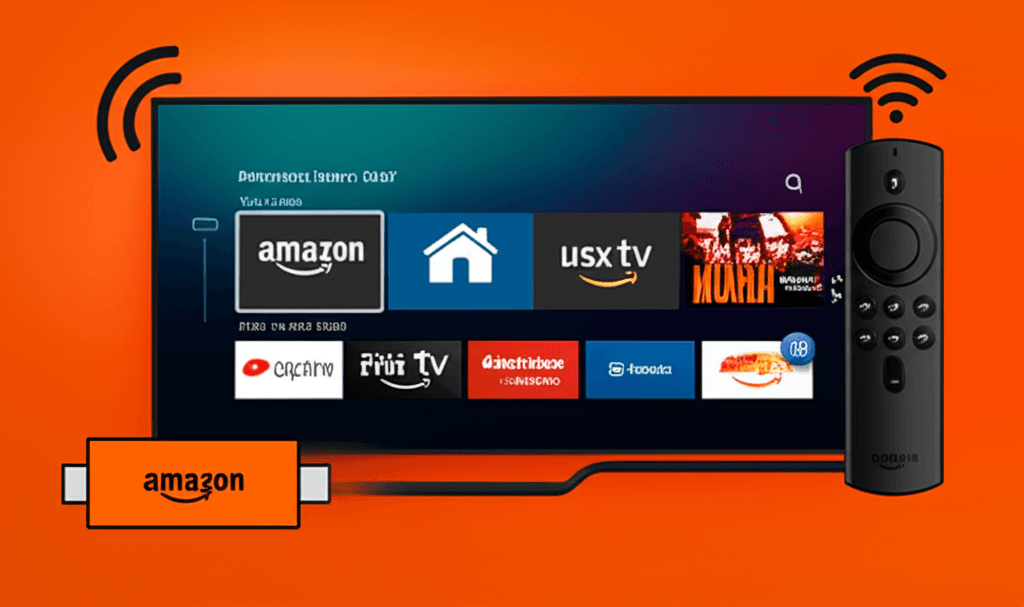
Why Fire TV Dominates IPTV Streaming
Amazon's Fire TV device family has become the de facto standard for IPTV streaming, outselling competitors and establishing itself as the preferred platform for cord-cutters worldwide. This dominance stems from a combination of factors: affordable pricing that puts devices within reach of most consumers, an Android-based operating system that supports a vast ecosystem of applications, and hardware specifically optimized for video streaming tasks.
Understanding why Fire TV devices excel at IPTV streaming helps users make informed purchasing decisions and optimize their existing hardware. Unlike general-purpose devices that attempt to serve many functions, Fire TV hardware focuses primarily on media consumption. This specialization allows Amazon to include dedicated video processing components, streaming-optimized WiFi implementations, and power-efficient designs that maintain cool operating temperatures during extended viewing sessions.
The Fire OS operating system, based on Android but customized for television interfaces, provides another key advantage. Because Fire OS maintains compatibility with standard Android application programming interfaces (APIs), IPTV applications developed for Android smartphones and tablets often work on Fire TV with minimal modification. This compatibility extends to the video playback frameworks, meaning applications can leverage the same hardware-accelerated video decoding capabilities across platforms.
Understanding Fire TV Hardware
Amazon currently offers five main Fire TV streaming devices, each positioned at different price points and capability levels. Understanding the distinctions between these models helps users choose the right device for their IPTV needs without overspending on unnecessary features or settling for inadequate hardware that compromises the viewing experience.
Fire TV Stick Form Factor
The Fire TV Stick design plugs directly into a television's HDMI port, creating a compact, nearly invisible installation. This form factor works well for most setups but does have limitations: the enclosed design can lead to heat buildup during extended use, and the reliance on HDMI port power (or the included adapter) limits placement flexibility. The compact size also constrains the hardware that can be included, which is why the larger Fire TV Cube outperforms the Stick models.
Within the Stick family, the differences between models matter significantly for IPTV performance. The Fire TV Stick Lite and base Fire TV Stick share similar processors with 1GB of RAM, adequate for standard HD streaming but potentially limiting when running feature-rich IPTV applications with extensive channel lists and Electronic Program Guide (EPG) data. These basic models struggle with 4K content entirely, limiting output to 1080p maximum resolution.
The Fire TV Stick 4K and 4K Max represent the sweet spot for most IPTV users. Both include 2GB of RAM and support 4K Ultra HD output with HDR. The 4K Max adds an octa-core processor (versus quad-core), WiFi 6E connectivity, and 16GB of storage (versus 8GB). These specifications translate to faster app loading, smoother channel switching, more reliable WiFi performance, and room for more applications—all meaningful improvements for daily IPTV use.
Key Specifications That Matter for IPTV
- • RAM (Memory): 2GB minimum recommended for smooth IPTV app performance
- • Storage: 16GB preferred for multiple apps and data caching
- • Processor: Octa-core for faster channel switching
- • WiFi: WiFi 6/6E for reliable streaming in congested networks
- • Video Output: 4K HDR for future-proof content compatibility
Fire TV Cube: Premium Performance
The Fire TV Cube represents Amazon's flagship streaming device, combining a powerful streaming box with smart speaker functionality. For IPTV users, the Cube's primary advantage lies in its superior processing power and thermal management. The larger enclosure allows for better heat dissipation, enabling sustained performance during marathon viewing sessions without the throttling that can affect overheated Stick devices.
The Cube's octa-core processor handles IPTV applications with ease, delivering noticeably faster navigation through channel lists and EPG grids compared to Stick models. Channel switching—a critical metric for live TV viewing—completes more quickly, reducing the frustrating delays that can make channel surfing tedious on underpowered hardware. For households that rely heavily on live television, this performance improvement alone may justify the premium price.
Setting Up Fire TV for IPTV
Configuring a Fire TV device for IPTV involves several steps beyond basic device setup. While Amazon's out-of-box experience guides users through WiFi connection and account linking, IPTV users need additional configuration to install and optimize their chosen player applications. Understanding this process helps users avoid common pitfalls and achieve optimal results.
Enabling Sideloading
Many popular IPTV applications are not available in the Amazon Appstore and must be installed through a process called sideloading. This involves enabling the "Apps from Unknown Sources" setting in Fire TV's privacy menu. While Amazon displays warnings about this setting, sideloading is a legitimate and common practice for Fire TV users—it simply means installing applications from sources other than the official Amazon store.
To enable sideloading on Fire TV, navigate to Settings, then My Fire TV (or Device on older software versions), then Developer Options. If Developer Options doesn't appear, you may need to enable it first by clicking on the "About" section and clicking on your device name seven times. Once in Developer Options, enable "Apps from Unknown Sources." On newer Fire OS versions, you'll need to grant this permission individually to specific apps used for installation.
Installing IPTV Applications
Several methods exist for sideloading IPTV applications onto Fire TV. The most user-friendly approach uses a utility app like Downloader, available in the Amazon Appstore. After installing Downloader, users can enter URLs to download APK files directly to the Fire TV and install them. This eliminates the need for computers or complicated file transfer procedures.
When installing IPTV players, always download from official sources or reputable mirrors. Popular applications like IPTV Smarters Pro, TiviMate, and OTT Navigator maintain official websites where current versions can be downloaded. Using official sources ensures you receive legitimate software without modifications that could compromise functionality or security.
Recommended Installation Steps
- Install "Downloader" app from Amazon Appstore
- Enable "Apps from Unknown Sources" for Downloader in Settings
- Open Downloader and enter the URL for your IPTV app
- Download and install the APK file when prompted
- Launch the IPTV app and enter your service credentials
- Configure EPG settings and personalize your channel list
Optimizing Fire TV Performance
Even the best Fire TV hardware benefits from optimization to deliver peak IPTV performance. Several adjustable settings and practices can improve streaming quality, reduce buffering, and extend device lifespan. Implementing these optimizations during initial setup prevents problems before they develop.
Network Optimization
Network connectivity represents the most critical factor in IPTV streaming quality. Even powerful hardware cannot compensate for inadequate bandwidth or unstable connections. For the best results, position your Fire TV within clear line-of-sight to your WiFi router, or use a wired Ethernet connection via USB adapter. The Fire TV Stick 4K Max and Fire TV Cube both support Ethernet adapters for guaranteed stable connectivity.
If using WiFi, connect to the 5GHz band rather than 2.4GHz when possible. The 5GHz band offers more bandwidth and less interference from neighboring networks and household devices. Fire TV devices with WiFi 6 or 6E support can take advantage of modern router features like OFDMA and MU-MIMO for improved performance in homes with many connected devices.
System Settings Adjustments
Several Fire TV system settings affect streaming performance. Disabling automatic video playback in the home screen prevents bandwidth consumption when you're not actively watching. Clearing cache for applications periodically frees storage space and can resolve sluggish performance. Setting display resolution to match your television's native capability ensures optimal picture quality without unnecessary processing overhead.
Managing background applications also impacts performance. Fire TV allows multiple apps to run simultaneously, consuming RAM and processing power. Periodically force-stopping unused applications through Settings frees resources for your IPTV player. Some users prefer to restart their Fire TV device before extended viewing sessions to ensure maximum resources are available.
Troubleshooting Common Issues
Despite proper setup and optimization, IPTV users occasionally encounter streaming issues. Understanding common problems and their solutions helps users resolve issues quickly rather than assuming their IPTV service is at fault. Many apparent service problems actually stem from device configuration or network issues.
Common Issues and Solutions
- • Frequent buffering: Check internet speed, try wired connection, clear app cache, restart device
- • App crashes: Update to latest version, clear data and reconfigure, check for Fire OS updates
- • No video output: Verify HDMI connection, try different HDMI port, check resolution settings
- • Audio out of sync: Restart app, check audio delay settings in player, switch audio tracks
- • Slow channel switching: Use wired network, reduce EPG data loaded, try different player app
- • Overheating/shutdown: Ensure adequate ventilation, use HDMI extender for better airflow
Heat management deserves special attention for Fire TV Stick users. The compact form factor can trap heat, especially when plugged directly into a TV's HDMI port located near other heat-generating components. Using the included HDMI extender cable moves the device away from the TV, improving airflow and reducing thermal throttling. Some users position the Stick behind their television where air can circulate freely.
When troubleshooting, isolate the problem source by testing systematically. If streams buffer on Fire TV but work fine on a phone using the same WiFi, the issue likely relates to the Fire TV device or its network configuration. If problems occur on all devices, focus on your internet connection or IPTV service. This methodical approach saves time by directing troubleshooting efforts appropriately.