Understanding Amazon Fire TV Technology
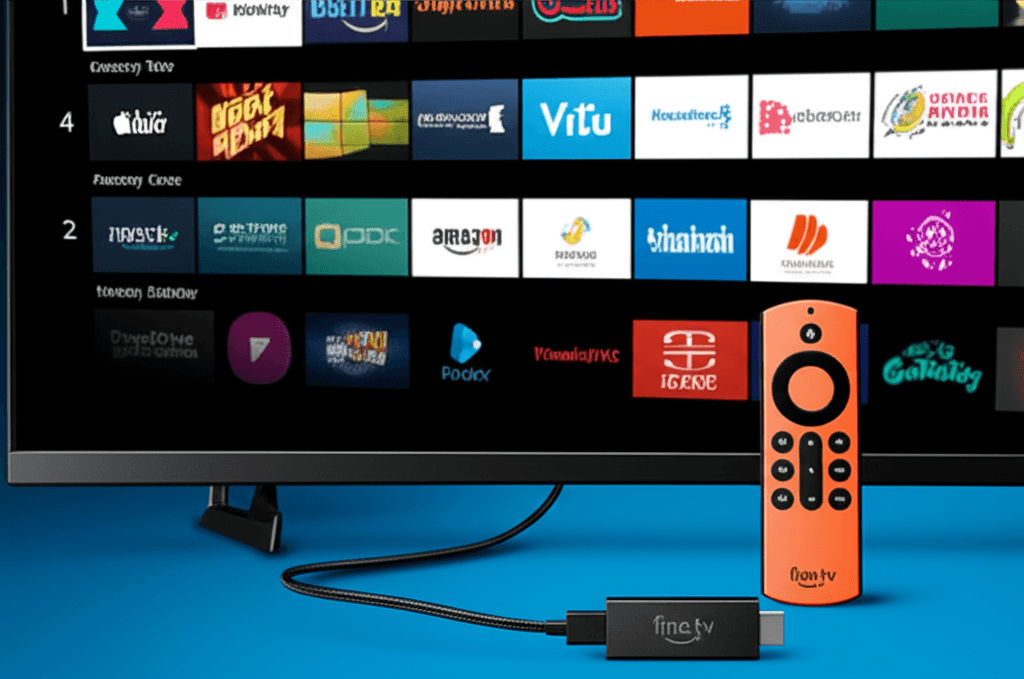
Amazon Fire TV is a line of digital media players and microconsoles developed by Amazon. First released in April 2014, these devices have evolved to become one of the most popular streaming platforms worldwide. The Fire TV family includes several product lines: the compact Fire TV Stick, the more powerful Fire TV Cube with built-in speakers and hands-free Alexa, and Fire TV Edition televisions that integrate the platform directly into the TV hardware.
All Fire TV devices run on Fire OS, Amazon's customized version of the Android operating system. This Android foundation is crucial for understanding how IPTV applications work on these devices. Fire OS maintains compatibility with Android's APK (Android Package Kit) format, which means applications packaged as APK files can be installed on Fire TV devices through a process called sideloading.
Fire TV Hardware Generations
The Fire TV Stick has gone through multiple generations of improvements. The original 2014 model featured a quad-core processor and 2GB of RAM, revolutionary specifications for a streaming device at that time. Subsequent generations have added support for 4K Ultra HD resolution, HDR (High Dynamic Range) video, Dolby Atmos audio, and WiFi 6 connectivity. The current Fire TV Stick 4K Max represents the most advanced stick-format device, featuring a MediaTek MT8696 processor capable of handling demanding streaming applications.
The Fire TV Cube, introduced in 2018, serves as Amazon's premium offering. Unlike the stick models, the Cube functions as a standalone device with built-in far-field microphones for hands-free Alexa control. The third-generation Cube (2022) includes an octa-core processor, 2GB of RAM, and supports 4K Ultra HD, Dolby Vision, HDR10+, and HDR10 video formats. This additional processing power makes the Cube particularly well-suited for IPTV applications that decode live video streams.
What is Sideloading?
Sideloading is the process of transferring files between two local devices, particularly installing application packages onto a mobile device or streaming box from sources other than the official app store. The term originated in the late 1990s when online storage service i-drive coined it as an alternative to traditional downloading. When applied to Android devices like Fire TV, sideloading specifically refers to installing APK files from sources outside the Amazon Appstore or Google Play Store.
On Android-based systems, sideloading is only possible when the user has enabled "Unknown Sources" or "Apps from Unknown Sources" in their device settings. This security feature prevents unauthorized applications from being installed without explicit user consent. Once enabled, users can install APK files downloaded from the internet, transferred via USB, or obtained through Bluetooth connections.
Why Sideloading is Necessary for IPTV Apps
Many IPTV player applications are not available in the Amazon Appstore due to policy restrictions. Amazon periodically removes streaming applications that can be used to access third-party content. However, these applications remain perfectly legal and functional—they simply need to be installed through alternative means. Sideloading provides this legitimate installation pathway on Android-based systems.
Advantages of Sideloading
Sideloading offers several benefits compared to app store installations. There are no geographic limitations on content delivery—users can install applications that may not be available in their region's app store. Applications can be updated independently of app store approval processes, ensuring users have access to the latest features and bug fixes. Additionally, sideloading allows installation of applications that have been removed from official stores for policy reasons unrelated to functionality or safety.
How IPTV Streaming Works on Fire TV
IPTV (Internet Protocol Television) streaming on Fire TV devices follows a sophisticated technical process. When you launch an IPTV application and enter your subscription credentials, the app establishes a connection with the IPTV provider's server infrastructure. Most modern IPTV services use the Xtream Codes API or similar protocols to authenticate users and deliver content.
The authentication process works by sending your username, password, and server URL to the provider's authentication server. Upon successful verification, the server returns an authentication token and a list of available channels organized by category. This channel data includes stream URLs, Electronic Program Guide (EPG) information, and channel logos. The IPTV player application parses this data and presents it through its user interface.
When you select a channel, the application requests the video stream from the content delivery server. Modern IPTV streams typically use HLS (HTTP Live Streaming) or MPEG-DASH protocols, which break video content into small segments. The Fire TV's processor decodes these segments in real-time using hardware acceleration, converting the compressed video (usually H.264 or H.265/HEVC codec) into displayable frames on your television.
Video Codecs and Quality
Fire TV devices support various video codecs essential for IPTV playback. H.264 (AVC - Advanced Video Coding) remains the most widely supported codec, offering good compression with excellent compatibility. H.265 (HEVC - High Efficiency Video Coding) provides approximately 50% better compression than H.264 at equivalent quality, making it ideal for 4K content delivery. Newer Fire TV devices also support AV1, a royalty-free codec developed by the Alliance for Open Media that offers even better compression efficiency.
The video quality you experience depends on several factors: your internet connection speed, the stream quality provided by your IPTV service, and your Fire TV device's decoding capabilities. SD (Standard Definition) streams at 480p require minimal bandwidth (2-4 Mbps), HD streams at 720p or 1080p need 5-15 Mbps, while 4K Ultra HD content demands 25 Mbps or more for smooth playback without buffering.