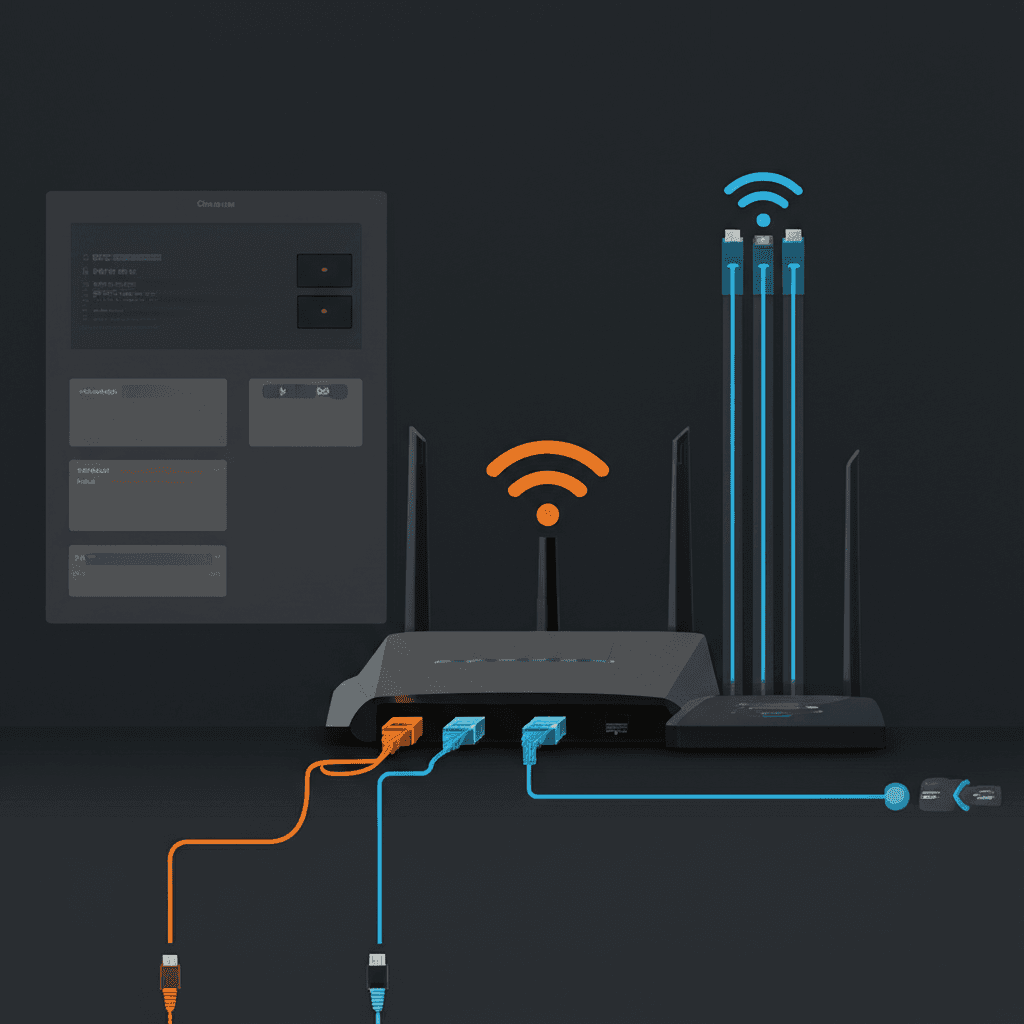
Your router serves as the gateway between your IPTV devices and the streaming servers delivering content to your home. Proper router configuration can mean the difference between smooth, high-quality streaming and constant buffering frustrations. While many users assume their internet speed alone determines streaming quality, router settings often play an equally important role in delivering consistent IPTV performance.
Why Router Configuration Matters
Modern households connect dozens of devices to their networks simultaneously. Smartphones, tablets, computers, smart home devices, and gaming consoles all compete for bandwidth alongside your IPTV streaming devices. Without proper configuration, your router treats all traffic equally—meaning a large file download or system update can interrupt your TV viewing.
Router configuration addresses this competition by prioritizing streaming traffic, optimizing wireless performance, and ensuring efficient data handling. Even fast internet connections can deliver poor streaming experiences through poorly configured routers that create bottlenecks, introduce latency, or fail to prioritize time-sensitive video traffic.
The good news: most router optimizations require one-time setup through your router's administration interface. Once configured correctly, your network continuously applies these improvements without further intervention, providing better IPTV performance indefinitely.
Accessing Your Router Settings
Before optimizing settings, you need access to your router's administration panel. Most routers use web-based interfaces accessible through a browser. Common router addresses include 192.168.1.1, 192.168.0.1, or 10.0.0.1—check your router's documentation or the label on the device itself.
Default login credentials are typically printed on the router or included in documentation. Common defaults include admin/admin, admin/password, or blank passwords. If you've changed credentials and forgotten them, most routers have physical reset buttons that restore factory defaults—though this erases all custom settings.
Some modern routers use companion smartphone apps instead of or alongside web interfaces. Apps from Netgear, TP-Link, Asus, and other manufacturers often provide simpler interfaces for common adjustments while still offering web access for advanced configuration.
Configuring Quality of Service (QoS)
Quality of Service (QoS) represents the most impactful router setting for IPTV streaming. QoS allows you to designate certain traffic types or devices as high priority, ensuring they receive bandwidth even when the network is busy with other activities.
Most routers offer QoS in one of two forms: application-based or device-based. Application-based QoS prioritizes traffic types (streaming video, gaming, web browsing) regardless of source device. Device-based QoS prioritizes specific devices by MAC address or IP address. For IPTV, either approach works—prioritize streaming traffic or prioritize your streaming devices directly.
To configure device-based QoS, first identify your streaming devices in your router's connected devices list. Note their MAC addresses or assign them static IP addresses to ensure consistent identification. Then create QoS rules placing these devices in the highest priority tier.
Some routers include streaming-specific presets or gaming modes that automatically configure QoS for entertainment devices. These presets provide reasonable starting points, though manual configuration often yields better results for specific setups.
WiFi Channel Optimization
WiFi networks operate on specific channels within frequency bands. When multiple nearby networks use the same channel, interference degrades performance for everyone. Optimizing your channel selection reduces interference and improves streaming reliability.
The 2.4GHz band offers only three non-overlapping channels (1, 6, and 11 in North America). In dense environments, finding an uncrowded channel proves difficult. WiFi analyzer apps for smartphones can scan nearby networks and suggest the least congested channel for your location.
The 5GHz band provides many more non-overlapping channels with less interference from common household devices. Most modern routers auto-select optimal 5GHz channels effectively. If you experience issues, try channels in the DFS (Dynamic Frequency Selection) range if your router and devices support them—these channels often have less competition.
Channel width settings also affect performance. Wider channels (80MHz or 160MHz on 5GHz) provide faster maximum speeds but are more susceptible to interference. In congested environments, narrower channels may deliver more consistent performance despite lower peak speeds.
2.4GHz vs 5GHz Band Selection
Dual-band and tri-band routers broadcast on multiple frequency bands simultaneously. Understanding when to use each band helps optimize streaming device connections for best performance.
5GHz advantages include faster maximum speeds, more available channels, and less interference from microwaves, cordless phones, and Bluetooth devices that operate near 2.4GHz. For streaming devices within reasonable range of your router, 5GHz generally delivers superior performance.
2.4GHz advantages center on range and wall penetration. The lower frequency travels farther and passes through obstacles more effectively than 5GHz. For streaming devices in distant rooms or through multiple walls, 2.4GHz might provide more reliable connectivity despite lower speeds.
Many routers broadcast both bands with the same network name, allowing devices to choose automatically. For critical streaming devices, consider creating separate network names for each band to manually control which frequency your devices use, ensuring they connect to your preferred band.
DNS Configuration
DNS (Domain Name System) servers translate human-readable addresses into IP addresses your devices use to connect. While DNS doesn't directly affect streaming bandwidth, slow or unreliable DNS can delay initial connections and cause playback start failures.
ISP-provided DNS servers often perform adequately but can be slower or less reliable than public alternatives. Popular public DNS services include Google (8.8.8.8 and 8.8.4.4), Cloudflare (1.1.1.1 and 1.0.0.1), and OpenDNS (208.67.222.222 and 208.67.220.220). These services typically respond faster and offer better uptime than many ISP DNS servers.
Configure DNS at the router level to apply custom servers to all connected devices automatically. Find DNS settings in your router's WAN or internet configuration section. Enter primary and secondary DNS addresses—using servers from two different providers ensures backup availability.
Some users report improved IPTV performance with specific DNS services, though results vary by location and IPTV provider. Experimenting with different DNS servers can help identify the best option for your particular setup.
Firmware Updates
Router firmware—the software running on your router—receives updates that improve performance, fix bugs, and patch security vulnerabilities. Keeping firmware current ensures your router operates optimally and securely.
Check for updates in your router's administration interface, typically under system or maintenance sections. Many modern routers support automatic update checks and installations. If your router lacks automatic updates, set calendar reminders to check manually every few months.
Firmware updates occasionally include streaming-specific improvements, enhanced QoS algorithms, or WiFi driver updates that directly benefit IPTV performance. Release notes accompanying updates detail specific changes—look for mentions of video streaming, buffering, or latency improvements.
Before updating, note current settings in case the update resets configuration to defaults. Most updates preserve settings, but major version changes occasionally require reconfiguration. Having settings documented speeds recovery if needed.
Router Placement Optimization
Physical router placement significantly affects WiFi coverage and performance. Optimal placement delivers stronger signals to streaming devices, reducing the need for maximum router output and improving reliability.
Central placement distributes signal more evenly throughout your home. Routers placed in corners or at one end of the house leave distant areas with weak coverage. If central placement isn't practical due to modem location, consider mesh systems or access points to extend coverage.
Elevation matters—routers placed on floors or behind furniture suffer signal obstruction. Position routers at desk height or higher, ideally on shelves or mounted on walls. Vertical antenna orientation typically provides better horizontal coverage for single-floor homes.
Avoid interference sources including microwaves, cordless phones, baby monitors, and large metal objects. These devices either emit interfering signals or block WiFi transmission. Even aquariums and mirrors can significantly impact signal propagation.
Wired Connection Setup
Ethernet connections to streaming devices eliminate WiFi variables entirely, providing maximum reliability and performance. For primary viewing locations, wired connections are worth the installation effort.
Most streaming devices include ethernet ports—Fire TV Stick requires an optional adapter, but Fire TV Cube and Android TV boxes typically have built-in ports. Smart TVs almost universally include ethernet connectivity. Connecting these devices via cable ensures consistent performance regardless of WiFi conditions.
For locations distant from your router, powerline adapters provide an alternative to running long cables. These devices use your home's electrical wiring to transmit network signals. Performance varies based on electrical wiring condition, but quality powerline adapters often outperform weak WiFi connections.
MoCA (Multimedia over Coax Alliance) adapters offer another option if your home has coaxial cable wiring. MoCA typically delivers better performance than powerline, making it ideal for homes with existing coax infrastructure from cable TV installations.
Router Security for Streaming
Proper security configuration protects both your network and streaming quality. Unauthorized users consuming your bandwidth directly impact available capacity for legitimate streaming. Additionally, compromised routers can be exploited in ways that degrade performance.
Use WPA3 or WPA2 encryption with strong, unique passwords. Avoid WEP encryption, which is easily compromised. If your router still uses WEP, consider it a sign the hardware needs replacement—modern routers all support WPA2 at minimum.
Change default administrator credentials to prevent unauthorized configuration changes. Use different passwords for WiFi access and router administration. Disable remote management unless you specifically need it—this prevents external parties from accessing your router's settings.
Consider creating a guest network for visitors rather than sharing your main network password. Guest networks typically isolate connected devices from your primary network, adding a security layer while still providing internet access.
Troubleshooting Router Issues
When streaming problems occur, systematic troubleshooting helps identify whether the router is the cause. Several tests isolate router-related issues from other potential problems.
Test wired vs wireless. If streaming works perfectly over ethernet but buffers on WiFi, the problem lies with wireless configuration or interference rather than internet connectivity or IPTV service issues. Focus on WiFi optimization in this case.
Reboot the router as a first troubleshooting step. Routers can develop issues over time that rebooting clears—memory leaks, connection table overflow, or temporary software glitches. If rebooting temporarily fixes problems that return, look for firmware updates or consider router replacement.
Monitor connected devices during issues. Unknown devices consuming bandwidth or infected devices generating unusual traffic can impact streaming. Check your router's connected device list for unexpected entries and investigate unfamiliar devices.
Frequently Asked Questions
What is QoS and how does it help IPTV streaming?
Quality of Service (QoS) is a router feature that prioritizes certain types of network traffic over others. For IPTV, enabling QoS ensures streaming traffic receives bandwidth priority even when other devices download files or run updates. This prevents buffering during heavy network usage by guaranteeing your streaming devices get the bandwidth they need.
Should I use 2.4GHz or 5GHz WiFi for IPTV streaming?
Use 5GHz WiFi when possible for IPTV streaming. The 5GHz band offers faster speeds and less interference from neighboring networks and household devices. However, 5GHz has shorter range—if your streaming device is far from the router and signal is weak, 2.4GHz might provide more stable (though slower) connectivity.
What DNS settings are best for IPTV?
Fast, reliable DNS servers improve IPTV performance by quickly resolving server addresses. Popular options include Google DNS (8.8.8.8, 8.8.4.4), Cloudflare DNS (1.1.1.1, 1.0.0.1), and OpenDNS (208.67.222.222, 208.67.220.220). These typically outperform ISP-provided DNS servers in speed and reliability.
Do I need a special router for IPTV streaming?
You don't necessarily need a special router, but a quality modern router improves streaming reliability. Look for routers with dual-band or tri-band WiFi, MU-MIMO technology, strong processors for handling multiple streams, and robust QoS features. Routers from the past 3-4 years generally support IPTV well; older routers may struggle with multiple HD streams.