Flix IPTV Guide
Complete Setup, Features & Configuration
Last Updated: January 6, 2026 • 13 min read
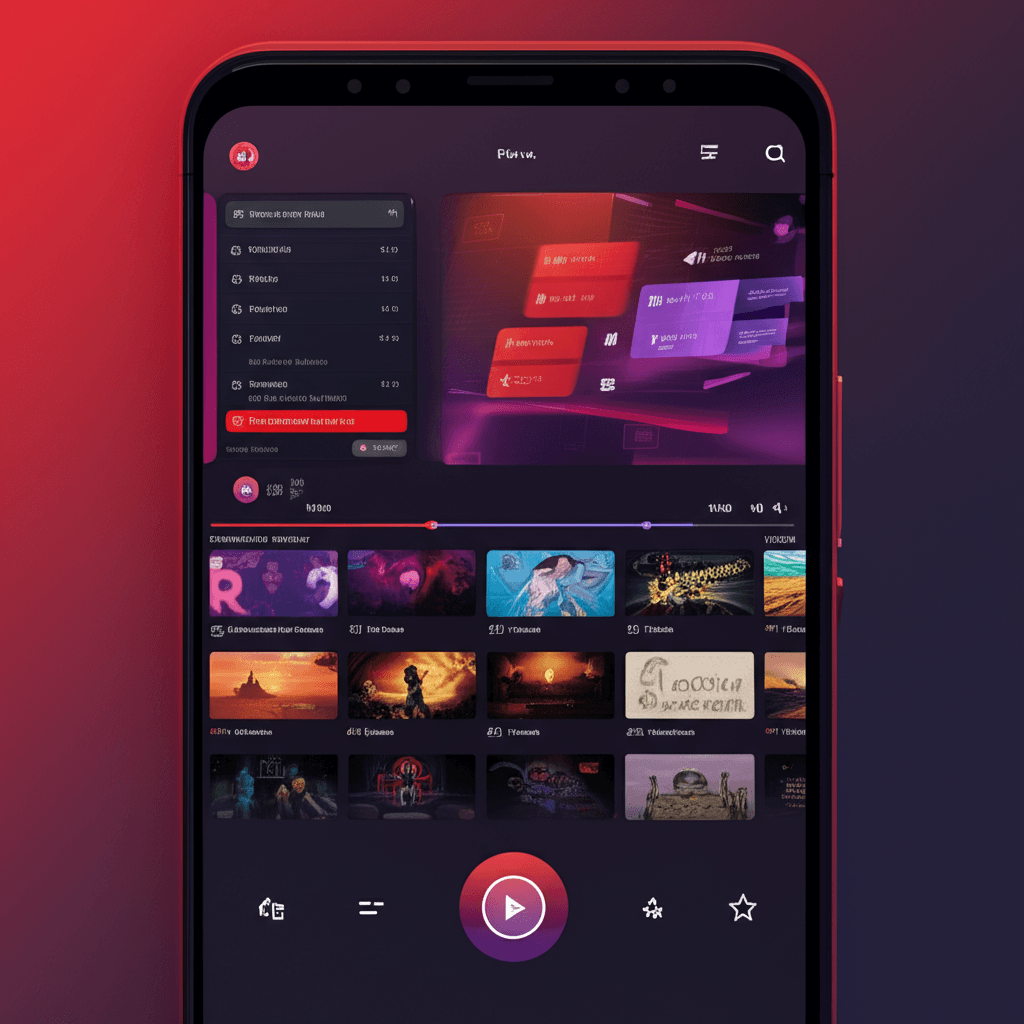
Flix IPTV has emerged as one of the most popular IPTV player applications, offering a polished interface, comprehensive EPG support, and reliable playback across multiple platforms. Whether you're setting up IPTV for the first time or migrating from another player, this guide covers everything you need to know about Flix IPTV, from basic installation to advanced configuration and troubleshooting.
What is Flix IPTV?
Flix IPTV is a dedicated media player application designed specifically for IPTV streaming. Unlike generic video players, it's built from the ground up to handle M3U playlists, Xtream Codes API connections, and electronic program guides (EPG), providing an experience optimized for live TV viewing.
The app distinguishes itself through its clean, intuitive interface that organizes channels by category, supports favorites for quick access, and displays detailed program information through integrated EPG. These features combine to create a viewing experience closer to traditional cable or satellite services than typical streaming apps.
Flix IPTV supports multiple streaming protocols and formats, ensuring compatibility with most IPTV providers. This versatility, combined with regular updates and active development, makes it a reliable choice for users seeking a stable, feature-rich IPTV player.
Supported Platforms and Devices
Flix IPTV availability spans multiple platforms, though installation methods and features vary somewhat between devices. Understanding platform-specific considerations helps ensure successful setup and optimal performance.
Amazon Fire TV & Fire Stick: Flix IPTV is available on the Amazon App Store for Fire TV devices, making installation straightforward. Fire TV Stick 4K and Fire TV Cube offer the best performance for demanding streams, while standard Fire TV Sticks handle HD content well.
Android TV Devices: Available through the Google Play Store on certified Android TV devices. Also works on Android TV boxes running various Android versions, typically requiring APK sideloading for unofficial devices.
Android Mobile Devices: Phone and tablet versions are available, though the interface is optimized for TV-sized screens. Useful for portable viewing or testing configurations before TV setup.
Samsung Smart TVs: Available on selected Samsung Tizen TVs through the TV's app store or sideloading, depending on model and region. Performance varies by TV model's processing capabilities.
LG Smart TVs: Limited availability on LG WebOS platform. Many users prefer connecting external streaming devices to LG TVs for more reliable Flix IPTV access.
Installation Guide
Installation procedures differ by platform. Following the correct process for your specific device ensures successful installation and proper app functionality.
Fire TV Installation: Search "Flix IPTV" in the Amazon App Store directly from your Fire TV device. Download and install like any other app. Launch to begin the activation process. This method is simplest and keeps the app updated automatically.
Android TV Installation: Open Google Play Store on your Android TV device, search for Flix IPTV, and install directly. For devices without Play Store access, download the APK file to a USB drive or transfer via file manager apps, then use a file explorer to install.
Sideloading Requirements: Devices requiring sideloading need "Unknown Sources" or "Install Unknown Apps" enabled in settings. Use the Downloader app (available on Fire TV and Android TV) to download APK files directly to your device when needed.
Initial Setup and Activation
After installation, Flix IPTV requires activation and playlist configuration before you can begin streaming. The process involves registering your device and connecting your IPTV subscription.
Device Activation: Launch Flix IPTV for the first time to see your device's unique MAC address displayed on screen. The app includes a free trial period (typically 7 days) for testing. After the trial, a one-time activation fee unlocks permanent access on that device.
Activation Payment: Visit the official Flix IPTV website, enter your device's MAC address, and complete the activation payment. Activation typically processes instantly, allowing immediate use after payment confirmation.
Playlist Configuration: Navigate to settings and select playlist or subscription options. Enter either your M3U URL or Xtream Codes API credentials provided by your IPTV service. Save settings and restart the app to load your channel list.
Configuring Playlists
Flix IPTV supports multiple playlist formats, giving you flexibility in how you connect your IPTV subscription. Understanding each method helps you choose the best approach for your provider and preferences.
M3U Playlist URL: The traditional IPTV playlist format. Your provider supplies a URL (typically starting with http:// or https://) containing your complete channel list. Enter this URL in Flix IPTV's playlist settings, and the app downloads and parses the playlist automatically.
Xtream Codes API: A more modern connection method providing additional features. Instead of a playlist URL, you enter three pieces of information: server URL (your provider's server address), username, and password. Xtream connections often enable additional features like catch-up TV and account information display.
Multiple Playlists: Flix IPTV supports adding multiple playlists, useful if you subscribe to more than one IPTV service or want to separate different content types. Switch between playlists through the app's settings or home screen options.
EPG (Electronic Program Guide) Setup
The electronic program guide transforms Flix IPTV from a basic channel list into a full TV experience with program schedules, descriptions, and what's-on-now information. Proper EPG setup significantly enhances usability.
EPG URL Configuration: Your IPTV provider should supply an EPG URL (typically an XML or XMLTV format file). Enter this URL in Flix IPTV's EPG settings section. The app downloads and processes the guide data, which can take several minutes for large EPG files.
Automatic EPG Updates: Configure automatic EPG refresh intervals in settings. Daily updates typically suffice for most users, balancing data freshness with bandwidth usage. Some users prefer twice-daily updates to ensure accurate program information.
EPG Display Options: Customize how program information displays—full grid view showing multiple channels and time slots, or simplified current/next program displays. Adjust these preferences based on your viewing habits and screen size.
Timezone Settings: Ensure your device and app timezone settings match your actual location. Incorrect timezone configuration causes EPG program times to display incorrectly, showing wrong information for current and upcoming programs.
Favorites and Organization
With potentially thousands of channels available, effective organization becomes essential for enjoyable viewing. Flix IPTV provides several tools for managing and accessing your preferred content quickly.
Adding Favorites: Mark frequently watched channels as favorites for quick access. Typically done by pressing a designated button on your remote while viewing a channel or from the channel list context menu. Favorites appear in a dedicated section for instant access.
Category Navigation: Flix IPTV organizes channels by categories as defined in your playlist (Sports, News, Entertainment, Movies, etc.). Navigate by category to quickly find content types without scrolling through entire channel lists.
Search Functionality: Use the search feature to find specific channels by name. Particularly useful for large playlists where scrolling becomes impractical. Search also helps locate channels that may be categorized unexpectedly.
Recently Watched: The app typically maintains a history of recently viewed channels, providing another quick-access method for channels you watch regularly but haven't added to favorites.
Playback Settings and Quality
Flix IPTV offers various playback settings affecting stream quality, performance, and viewing experience. Understanding these options helps optimize playback for your specific setup and internet connection.
Video Player Selection: The app may offer multiple built-in video players optimized for different stream types. Experiment with available player options if experiencing playback issues with specific channels, as some streams work better with particular decoders.
Buffer Settings: Adjust buffer size to balance between quick channel switching (smaller buffer) and smooth playback with connection fluctuations (larger buffer). Start with default settings and adjust only if experiencing issues.
Hardware Acceleration: Enable hardware decoding for better performance on capable devices. This offloads video processing to dedicated hardware, reducing CPU load and improving 4K playback smoothness.
Aspect Ratio Controls: Adjust display aspect ratio for channels broadcasting in different formats. Options typically include automatic detection, force 16:9, force 4:3, and stretch-to-fill modes.
Troubleshooting Common Issues
Even well-designed apps encounter occasional problems. Understanding common Flix IPTV issues and their solutions helps maintain smooth streaming experiences.
Playlist Not Loading: Verify your playlist URL is correct and complete (check for typos or missing characters). Confirm your IPTV subscription is active and not expired. Test the playlist URL in a web browser to verify it downloads properly. Check your internet connection can access external websites.
Channels Not Playing: Individual channel failures often indicate provider-side issues. Test multiple channels to determine if the problem is widespread or isolated. Clear app cache and restart. Try switching between available video player options in settings.
Buffering Issues: Increase buffer size in settings. Switch from WiFi to wired ethernet connection if possible. Close other apps consuming bandwidth. Test internet speed to ensure it meets requirements for your selected stream quality.
EPG Problems: Verify EPG URL is entered correctly. Allow sufficient time for large EPG downloads (can take 5-10 minutes). Check timezone settings match your location. Some providers have EPG that doesn't match their channel IDs—contact provider support if EPG never displays correctly.
Flix IPTV vs Alternatives
Understanding how Flix IPTV compares to other popular IPTV players helps you determine if it's the right choice for your needs or if alternatives might better suit specific requirements.
vs TiviMate: TiviMate offers more customization options and advanced features for power users, but requires Android platforms. Flix IPTV provides broader device compatibility including smart TVs while maintaining a simpler, more accessible interface.
vs IPTV Smarters: Both apps offer similar core features. IPTV Smarters has a more Netflix-like interface for VOD content, while Flix IPTV excels at live TV organization. Personal interface preference often determines the better choice.
vs Smart IPTV: Smart IPTV focuses on native smart TV integration, while Flix IPTV provides richer features on streaming devices. For users with capable streaming devices, Flix IPTV typically offers superior experience.
Tips for Best Performance
Maximizing your Flix IPTV experience involves optimizing both app settings and your overall streaming environment. These tips help ensure reliable, high-quality viewing.
Use Wired Connections: Ethernet connections eliminate WiFi interference issues, providing more consistent bandwidth for streaming. Even modern WiFi can introduce micro-buffering that wired connections avoid.
Regular Cache Clearing: Periodically clear app cache to prevent accumulated data from affecting performance. Monthly clearing typically suffices for most users.
Keep App Updated: Enable automatic updates or regularly check for new versions. Updates often include performance improvements, bug fixes, and compatibility enhancements with evolving streaming standards.
Optimize Playlist Size: If your provider offers customizable playlists, request one containing only channels you actually watch. Smaller playlists load faster and are easier to navigate.
Frequently Asked Questions
Is Flix IPTV free or does it require payment?
Flix IPTV offers a free 7-day trial period, after which a one-time activation fee is required (approximately $5-8 USD). This is a single payment for permanent app activation on that device. However, you'll still need a separate IPTV subscription for actual streaming content.
What devices support Flix IPTV?
Flix IPTV is available on Amazon Fire TV and Fire Stick, Android TV devices, Android phones and tablets, Samsung Tizen Smart TVs (selected models), and LG WebOS Smart TVs (selected models). Fire TV Stick 4K offers the best balance of performance and price.
How do I add my IPTV subscription to Flix IPTV?
Flix IPTV supports M3U URL and Xtream Codes API configuration. For M3U setup, enter your provider's playlist URL in the app's settings. For Xtream Codes, enter your server URL, username, and password. Both options are found in the playlist settings menu.
Why isn't my EPG showing in Flix IPTV?
EPG issues typically result from incorrect EPG URL configuration, incompatible format, or timeout with large files. Verify your provider's EPG URL is entered correctly, allow time for large downloads, and check your timezone settings match your location.